

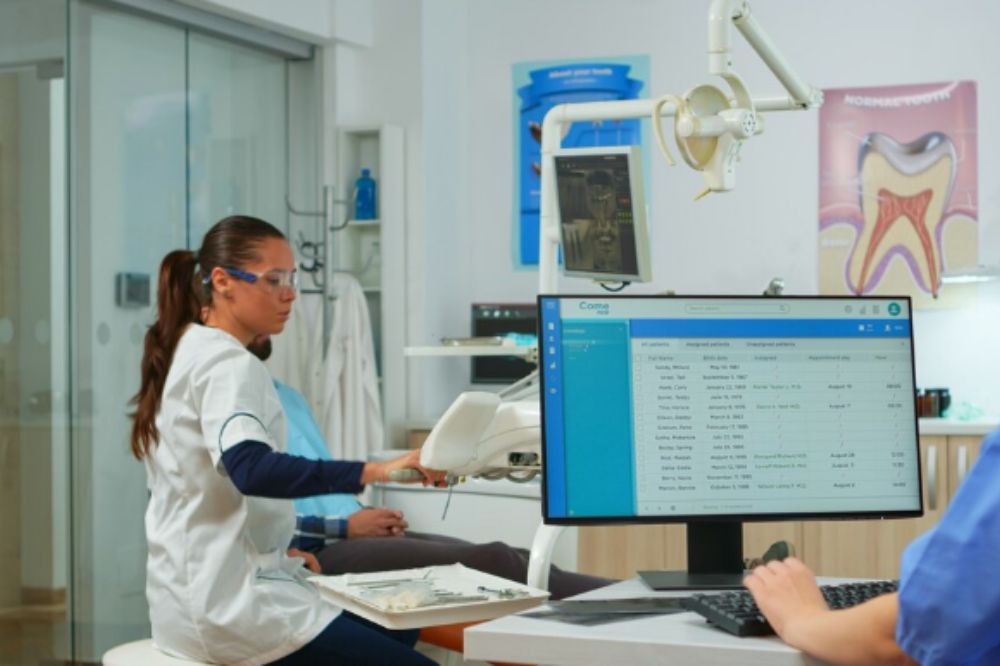
Setting up your online account is the fastest way to get your dental benefits. If you are planning to visit a dentist in Woodbridge soon, having your account ready will make your visit much easier.
The Canadian Dental Care Plan (CDCP) uses the My Service Canada Account (MSCA) to send you letters and show your coverage details.
By spending a few minutes online today, you can skip long phone calls and manage everything from your own home.
What Do You Need To Get Started?
Before you start, gather a few things to make the process quick. You will need your Social Insurance Number (SIN), your birth date, and your latest tax return. Having these ready helps the computer verify who you are right away.
Once your account is set up, you can easily find a dental clinic near you that takes the plan and knows how to look up your information online.
How To Sign Up For Your Account
To start, go to the government website and look for the button to create a Service Canada account online. There are three ways to sign in:
- Sign-In Partner: This is the easiest way. You just use your normal bank login (like the one you use for your banking app).
- GCKey: You can create a new username and password just for this site.
- Provincial ID: Some provinces let you use your local digital ID.
Using your bank login is very secure and means you don’t have to remember a new password. This keeps your personal health info safe.
Finding The Dental Section In Your Account
After you log in, you will see a main page with all your services. To find a CDCP near you or check your status, look for the “Canadian Dental Care Plan” section. In 2026, this is usually right at the top of the page.
Here, you can see if your application was approved, find your member number, and check when your coverage starts. This is also where you go to update your address if you move.
Important Steps To Follow
- Pick your login: Choose your bank or a GCKey to get in.
- Confirm who you are: Type in your SIN and your personal details exactly as they appear on your taxes.
- Set up security: Choose security questions that are easy for you to remember but hard for others to guess.
- Click on Dental: Once you are in, click the “Dental Care” link to see your letters.
What Your Account Status Means
| Status | What it means for you |
| Approved | You are ready to go! You can book your appointment now. |
| In Progress | The government is still checking your info. Wait a few more days. |
| Renew Now | It is time to confirm your info for the next year (usually by June 1st). |
| Action Required | You might need to send in more papers or fix an error. |
Why You Must Keep Your Info Updated
Your dental plan is based on your taxes and where you live. If you move or if your family income changes, you need to update your account immediately. The government checks your info every year to see if you still qualify.
If your account has the wrong address, you might miss important mail. Keeping your profile current makes sure your dental team can help you without any delays.
Helping Your Family With Their Accounts
If you have seniors or children in your home, you might need to help them with their accounts, too.
While every adult usually needs their own login, you can often see the status of your children under your own file. This makes it much easier to plan checkups for the whole family at once.
It takes away the guesswork and ensures everyone gets their teeth cleaned on time.
Simple Steps For A Healthy Smile
Setting up your online account puts you in charge of your health. At Vellore Woods Dentistry, we want your visit to be as simple as possible.
Our team can help you understand your benefits once your account is ready to go.
We believe that using modern tools makes dental care easier and better for everyone. Call us right now to book your visit, reach out today and let us help you get started!
Frequently Asked Questions
What if I lose my password?
Don’t worry! You can click “Forgot Password” to reset it. If you use your bank login, you just sign in to your bank like normal to get back in.
How fast can I use my account?
Your account is usually ready right away. However, it might take a day or two for your new dental plan details to show up after you are approved.
Can I use the website on my phone?
Yes, the site works great on phones and tablets. This is very handy if you need to show your member number to the person at the front desk.
Do I have to do this every year?
You only have to make the account once. But every year, you will need to log back in to “Renew” your plan and make sure your info is still correct.